Creating With Git

This repository and book serves as the instructional material and work template for the course “Creating With Git” on The Taggart Institute.
Copyright
Although this repository is open source and suggestions in the form of Pull Requests are welcome, this remains the intellectual property of The Taggart Institute, LLC, under the following license:

This work is licensed under a Creative Commons Attribution-NonCommercial-NoDerivatives 4.0 International License.
Setup
Codeberg Account and SSH Key
For our work in this course, you’ll need a Codeberg account. Sign up for one if you don’t have one; it’s free!
Why Codeberg? Why not GitHub? The original version of this course indeed used GitHub. However, more recent developments have convinced me to move this course to alternative Git forges.
To best use Codeberg the way we intend, we need to connect an SSH key to it. This will serve as our authentication method to Codeberg in the terminal.
If you know what an SSH key is and have one already, you can skip this part. For everyone else, let’s check if you do have one. In your terminal (on Linux and macOS), run the following command:
cat ~/.ssh/id_ed25519.pub
For Windows PowerShell users, you can run:
cat ~/_ssh/id_rsa.pub
At the time of this writing, Windows had yet to convert to using Ed25519 SSH keys. If they have by the time you read this, so much the better.
If you get output, that’s your SSH public key! That’s what we’ll need for the next step. If you didn’t get anything, then for all operating systems, you’re running:
ssh-keygen
For now you can just breeze through the process. Add a passphrase if you like, but make sure you remember it! Then run the appropriate cat command above to get the public key available for some copypasta.
Now, navigate to https://codeberg.org/user/settings/keys and click “Add key.”
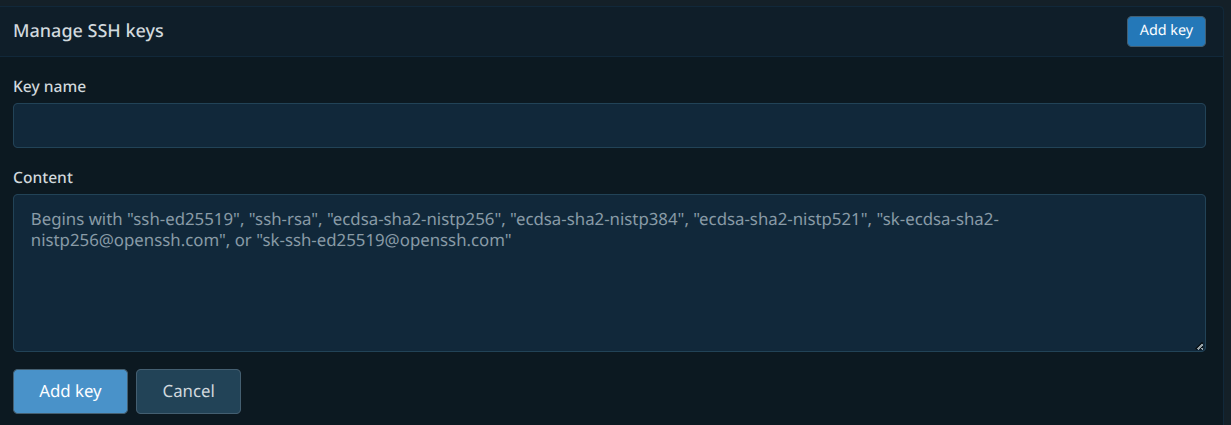
Name it whatever you like. I tend to name it after the computer I generated it on. Copy and paste the public key from the terminal into the “Key” text area and make sure the “Key type” remains “Authentication Key.”
Click the larger “Add key” button, and your account is all set to work correctly!
Get This Repo
As this is an instructional repo on the use of Git, we’ll be forking, then cloning this repo to use it.
Head over to, well, this. https://codeberg.org/The-Taggart-Institute/creating-with-git.
Fork the repo to your account with this button:
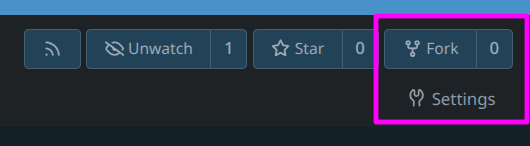
With your very own copy of the repo, clone it down by copying the URL and then heading over to your terminal and typing:
git clone git@codeberg.org:your-codeberg-account/creating-with-git.git
If you added a passphrase to your SSH key, you’ll be prompted for it. Type it in and press Enter, although you won’t see any visual confirmation of keystrokes.
We’ll learn more about what clone actually means later, but for now, hey! You have your very own copy of this repo. Get in there.
cd creating-with-git
Install Requirements
This project uses mdbook, which is a Rust binary. It can be installed either from binary releases, or via cargo if you have the Rust toolchain installed.
cargo install mdbook
You can then use mdbook to launch a development web server.
mdbook serve
That should launch local web server that serves up the website version of this repo on http://localhost:3000. Check it out!
Usage
As you go through the course, use the material here as supplemental reading, as well as a starting point for your own documentation. At several points, you’ll find parts that you’ll be asked to fill in to complete your very own resource for Git documentation! As you do, make commits with your own changes, and consider publishing them for yourself!